Getting started
Welcome to Easy Crochet Charts! In under two minutes you can go from a blank canvas to your first crochet chart.
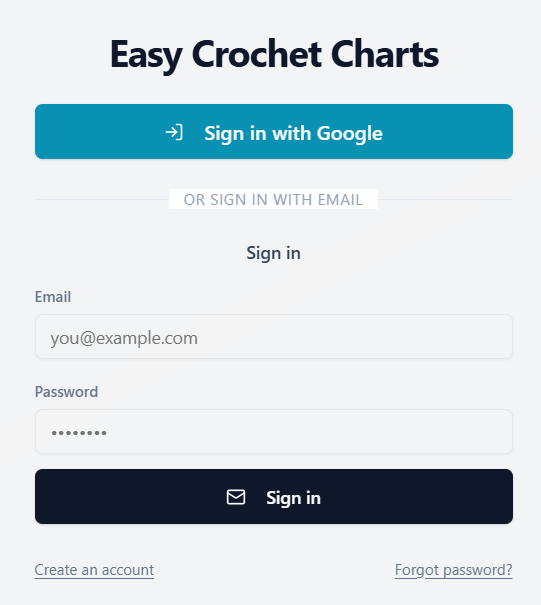
Sign in with Google or create an email + password account.
You'll land on a blank canvas with the toolbar at the top, the symbol palette on the left, and layers / group tools on the right.
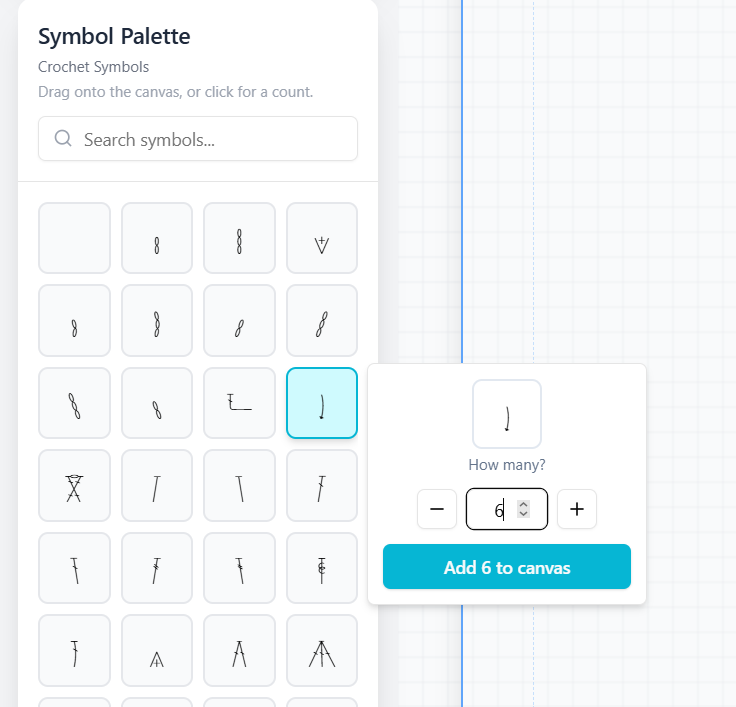
Drag any symbol onto the canvas — or click a symbol to add several at once.
When you're done, click Save or Export to download your chart as an SVG.
Adding Symbols
Drag one symbol
Grab any tile in the Symbol Palette (left panel) and drag it onto the canvas. It drops exactly where you release it and snaps to the grid.
2. Click for a row of symbols
Click any tile in the palette. A small popover appears with the symbol preview and a "How many?" counter. Set the count (1–200) and click Add N to canvas. The symbols are placed on the canvas in a horizontal row, evenly spaced.
Every symbol is still a separate object — you can still click and drag each one individually to reposition it.
Square vs circular grid
The three icons in the middle of the toolbar toggle grid modes:
- Square grid — perfect for scarves, blankets, garments, and any flat piece worked in rows.
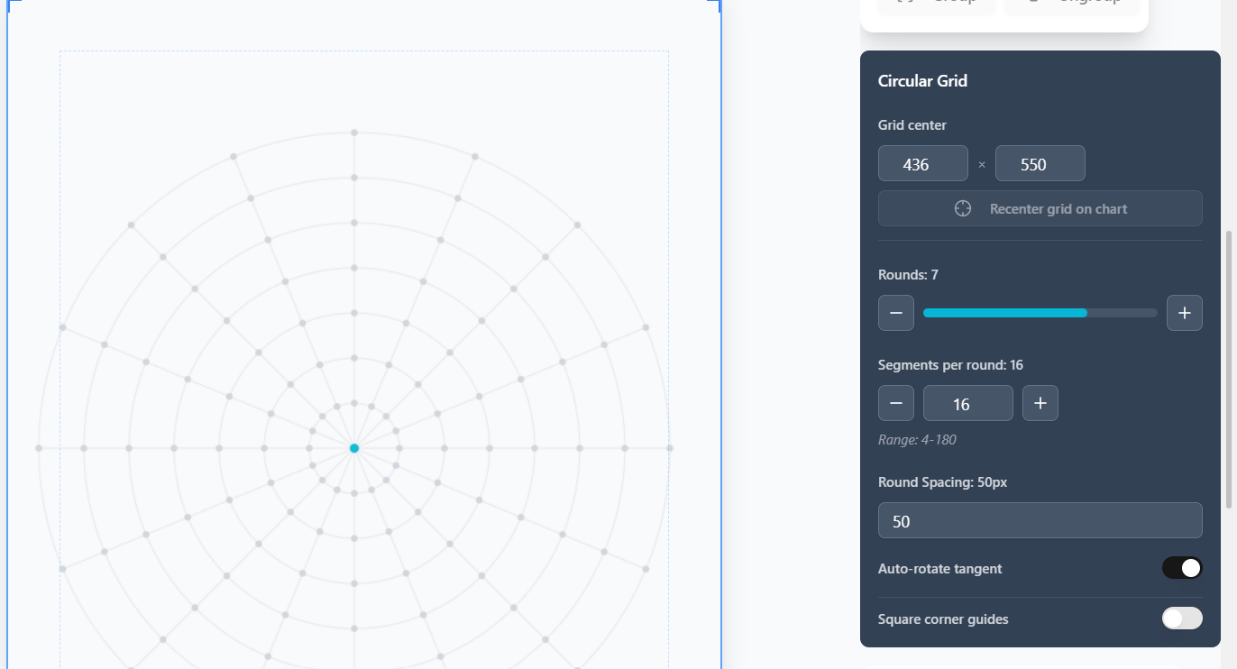
- Circular grid — perfect for doilies, granny motifs, coasters, hats worked in the round.
- Grid off — freeform placement with no snapping.
In circular mode, symbols automatically snap to the nearest round and segment. Use Size at the top to adjust cell/segment size.
Selecting & Moving
- Click a symbol to select just that one.
- Shift+click to add or remove from your selection.
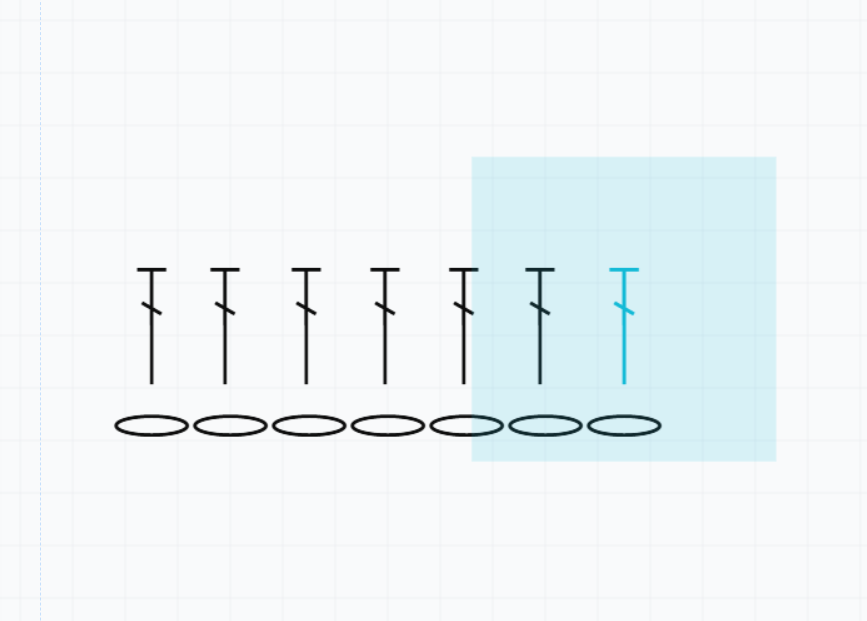
- Click and drag on empty canvas to draw a selection box that grabs everything inside it.
- Use the Select all button in the right sidebar to grab every unlocked object.
Once selected, drag any part of the selection to move — everything selected moves together. Use Delete to remove.
Groups
Groups let you treat a bunch of symbols as one — perfect for a repeating stitch cluster.
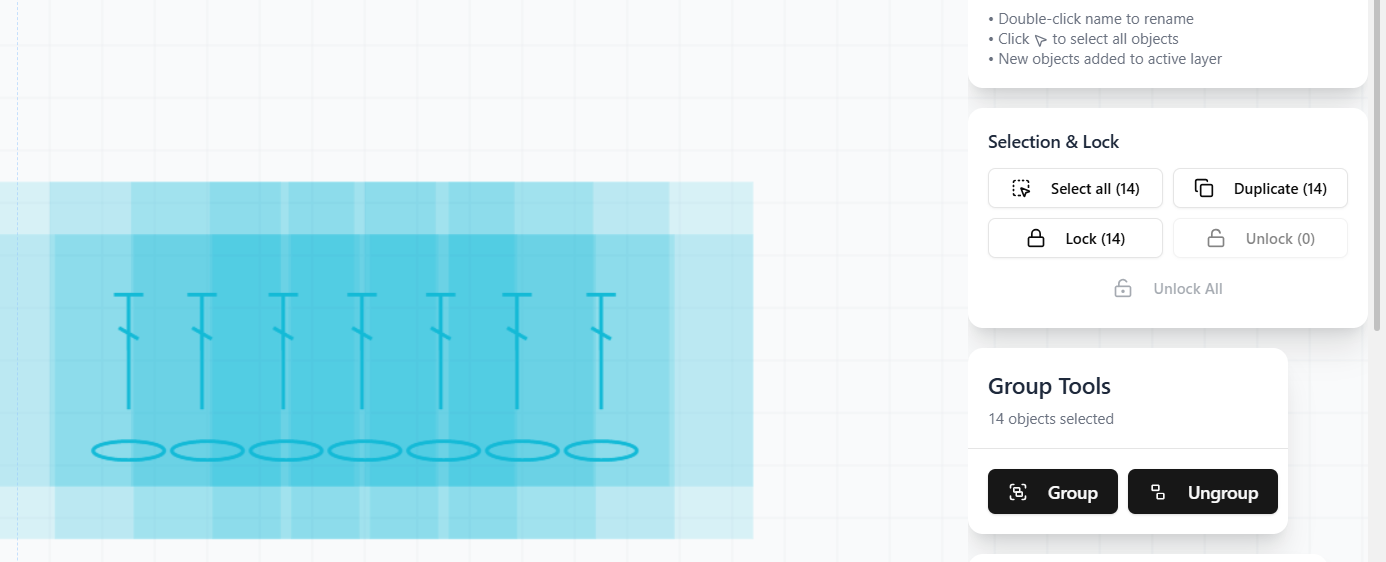
- Select 2 or more symbols.
- In the Group Tools panel (right side), click Group.
- From now on, clicking any symbol in that group selects the whole group. Dragging any one moves them all together, keeping their relative positions.
Ungrouping
Click any grouped symbol, then click Ungroup. The symbols go back to being independent.
Locking objects
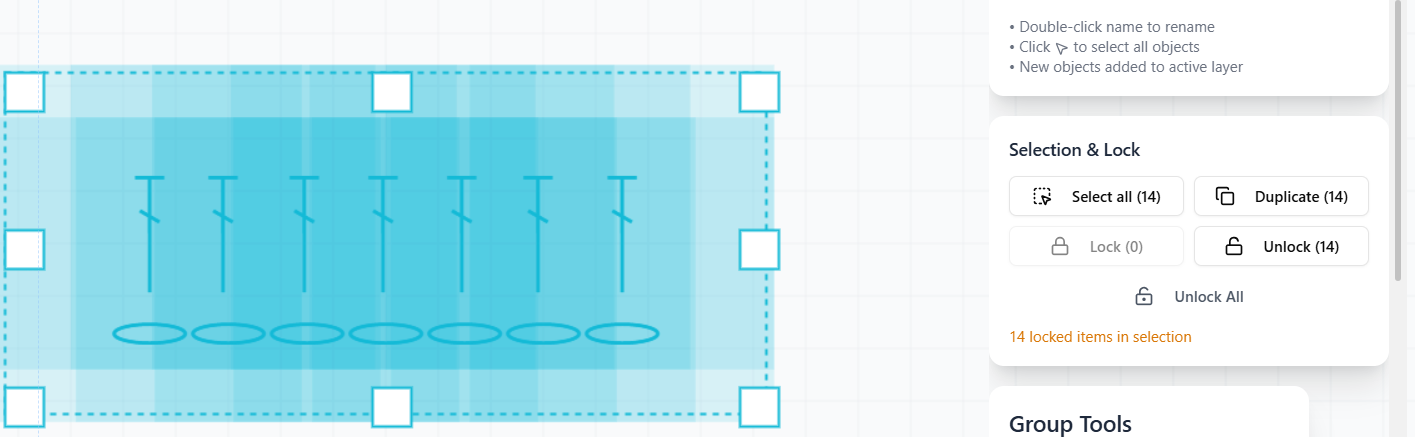
Once you've got a section of your chart the way you want it, lock it so you don't accidentally move it.
- Select the symbols you want to protect.
- In the Selection & Lock panel, click Lock.
- Locked objects can't be moved, resized, or deleted until unlocked.
Click Unlock on selected locked objects, or Unlock All to release everything at once.
Layers
Layers work like transparent sheets stacked on top of each other. Use them to separate parts of your chart (e.g., background grid, stitches, notes).
- Click the + next to Layers to add a new one.
- Double-click a layer name to rename it.
- Click the arrow icon on a layer to select all objects on that layer.
- New symbols are added to whichever layer is currently active.
Adding text
Text labels are useful for row numbers, notes, or credits.
- Click the Text tool in the toolbar.
- Click anywhere on the canvas to drop a text label.
- Select the text and edit its content, size, and colour in the Properties panel on the right.
Saving & Loading
Your work auto-saves every minute — you'll see "Auto-saved ✓" in the toolbar.
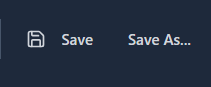
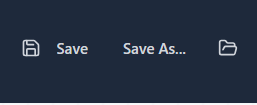
- Save — saves the current chart. If it's a new chart it prompts for a name.
- Save As… — save the current chart as a new copy.
- The folder button (Load) opens your saved charts — click any one to reopen it.
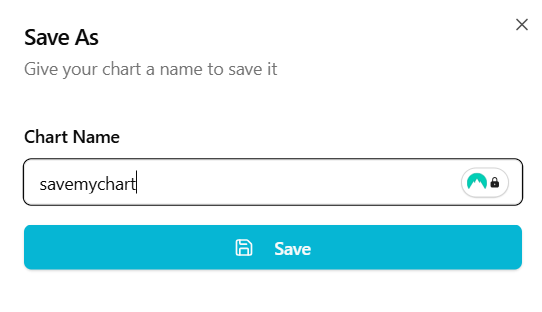
For a new chart, click Save As and name your chart.
Exporting your chart
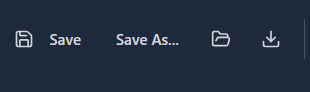
When your chart is ready, click Export in the toolbar. Your chart downloads as an SVG file which you can:
- Insert into a pattern PDF or Word document.
- Print directly.
- Import into design software (Illustrator, Affinity, Inkscape) for further styling.
Free trial & subscription
- 7-day free trial with full design access and up to 3 exports.
- After the trial or the 3-export limit, keep going with a £29 / year subscription.
- Subscribing gives you unlimited exports, unlimited saved charts, and all future features.
- Backed by a 30-day money-back guarantee.
To subscribe, hit Subscribe when it appears (either on the "Access pending" page or the toast that shows once you hit the export limit).
Keyboard shortcuts
- Ctrl + A — Select all objects
- Ctrl + D — Duplicate selection
- Ctrl + N — New chart
- Ctrl + Z — Undo
- Ctrl + Shift + Z — Redo
- Delete — Remove selection
- Shift + click — Add/remove from selection